Configuration and post installation?
Each post install step is reversible at this point, the steps are explained later in the documentation.#
Quick Links#
- start by choosing some options!
- Initialization step!
- Manual initialization!
- open the App!
- Test the application after initialization!
start by choosing some options!#
1 - Admin section or not!#
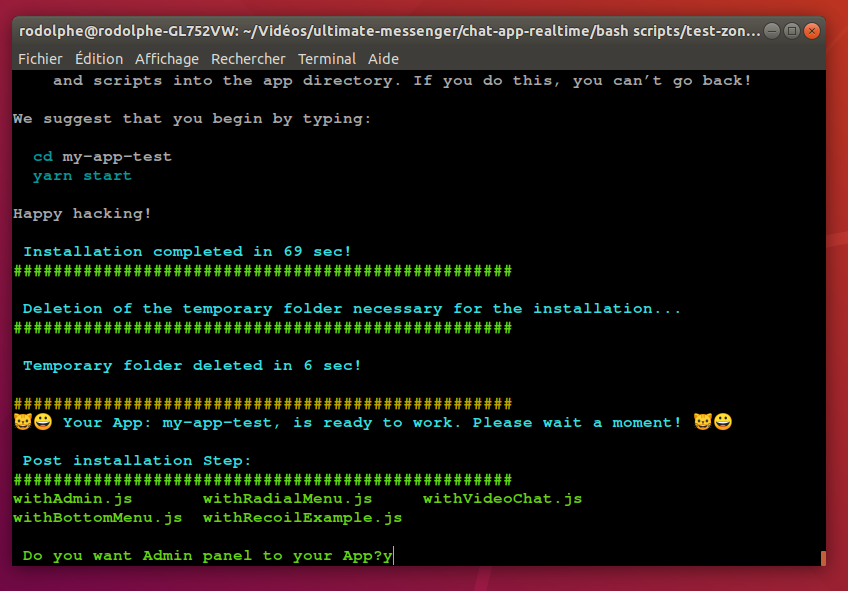
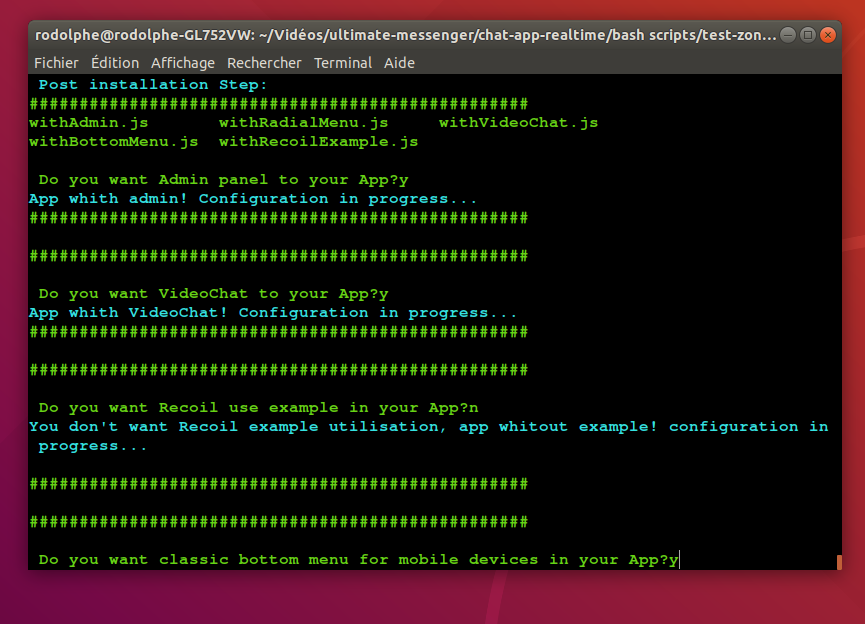
First, the script asks you if you want an administrator panel for your App. In this example, I answer yes.
2 - VideoChat or not!#
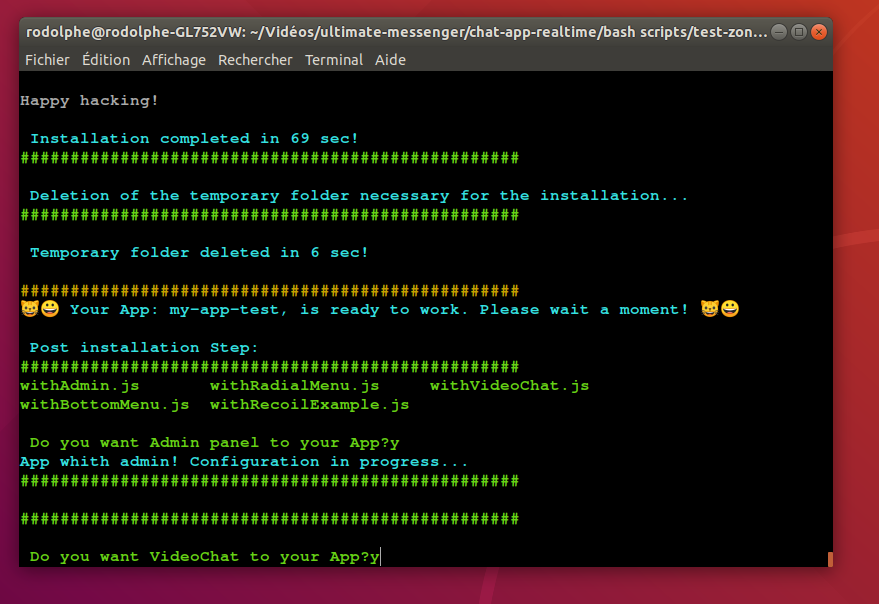
secundo, the script asks you if you want videoChat by default for your App. In this example, I answer yes.
3 - Recoil example or not!#
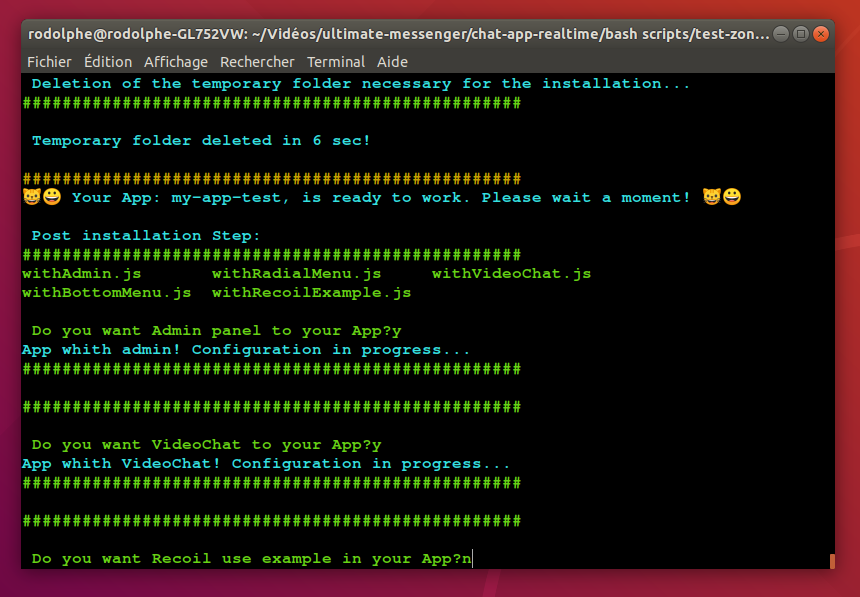
Then, do you want an example of using recoil (atom and selector), I answer no.
4 - Mobile devices menu or not!#
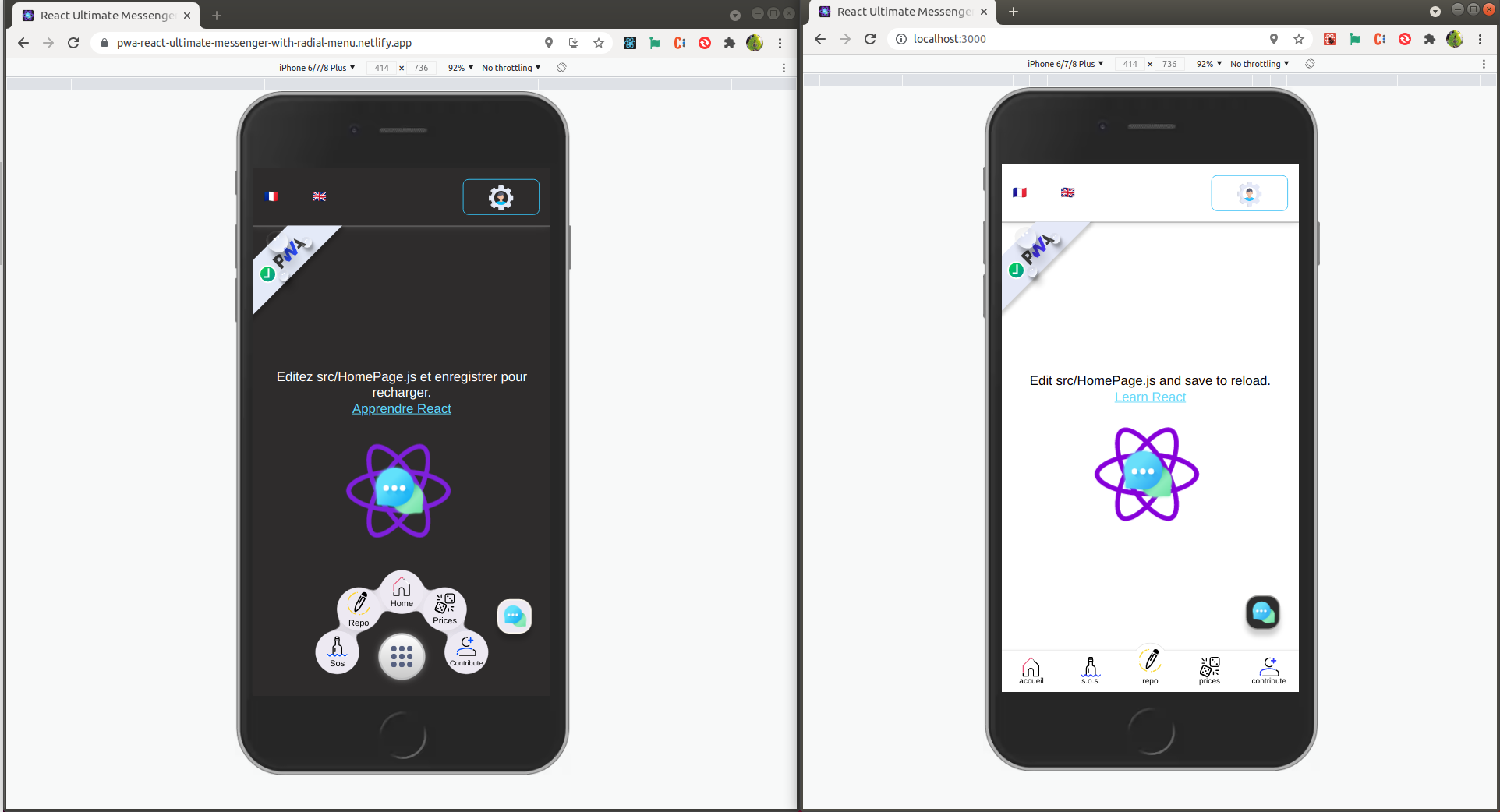
Then comes the choice of the menu for the mobile devices,
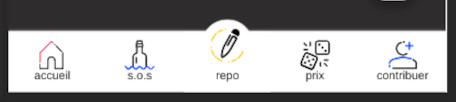
you have two choices:
Classic Bottom menu#
Radial burger menu#
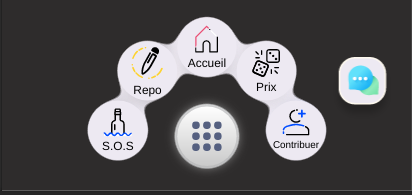
(Live demo is accessible via the demo links on the pwa version installation page).
In this example, I choose the classic bottom menu.
Initialization step!#
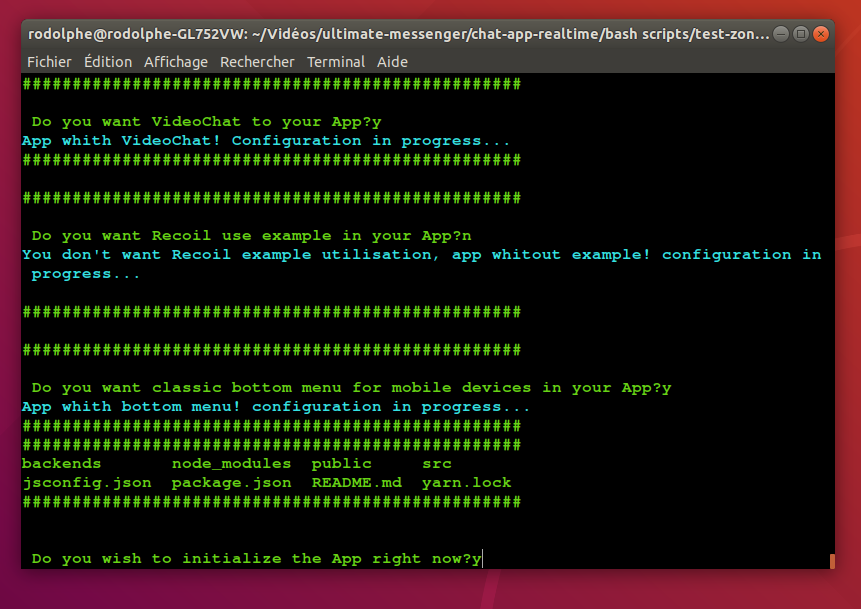
Then you have to initialize the application - You can do it manually (the steps are explained later in the documentation) but using this script is highly recommended for simplicity.
What happens during the initialization?#
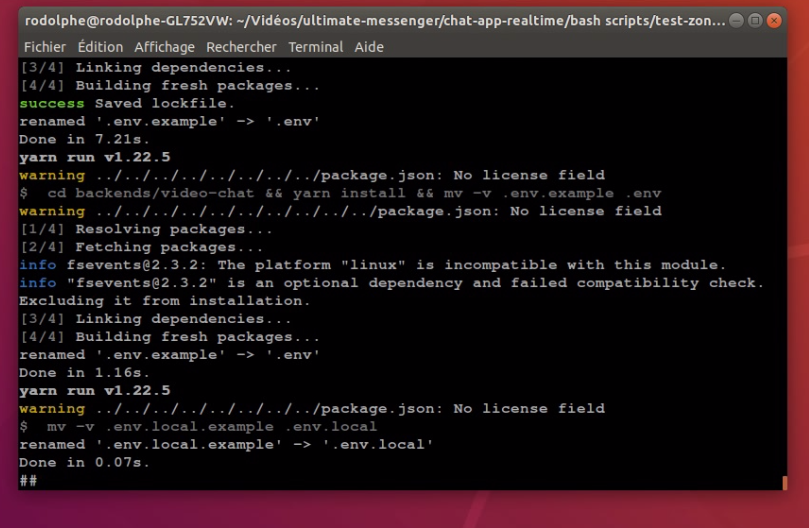
The script starts by going to the backend folder of the message-pictures server to install the dependencies, then an images folder is created and finally the .env.example file is renamed to .env.
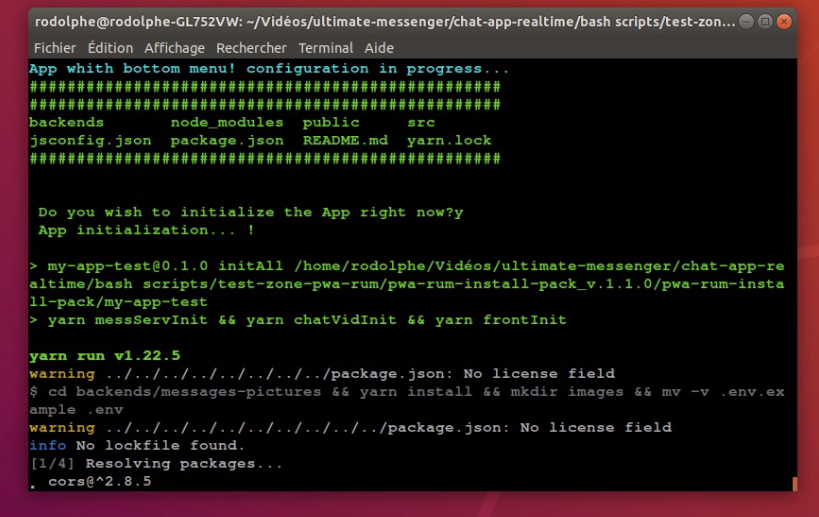
Then he goes to the video-chat folder (still in the backend folder) to install the dependencies and rename the env. file like in the previous folder. And finally, it goes to the root folder of the application to rename the .env.local.example to .env.local file.
Manual initialization!#
If you have not initialized the application through the script, this step is for you.
I have written several scripts in the package.json file so that the initialization is simple and fast.
How to do it?#
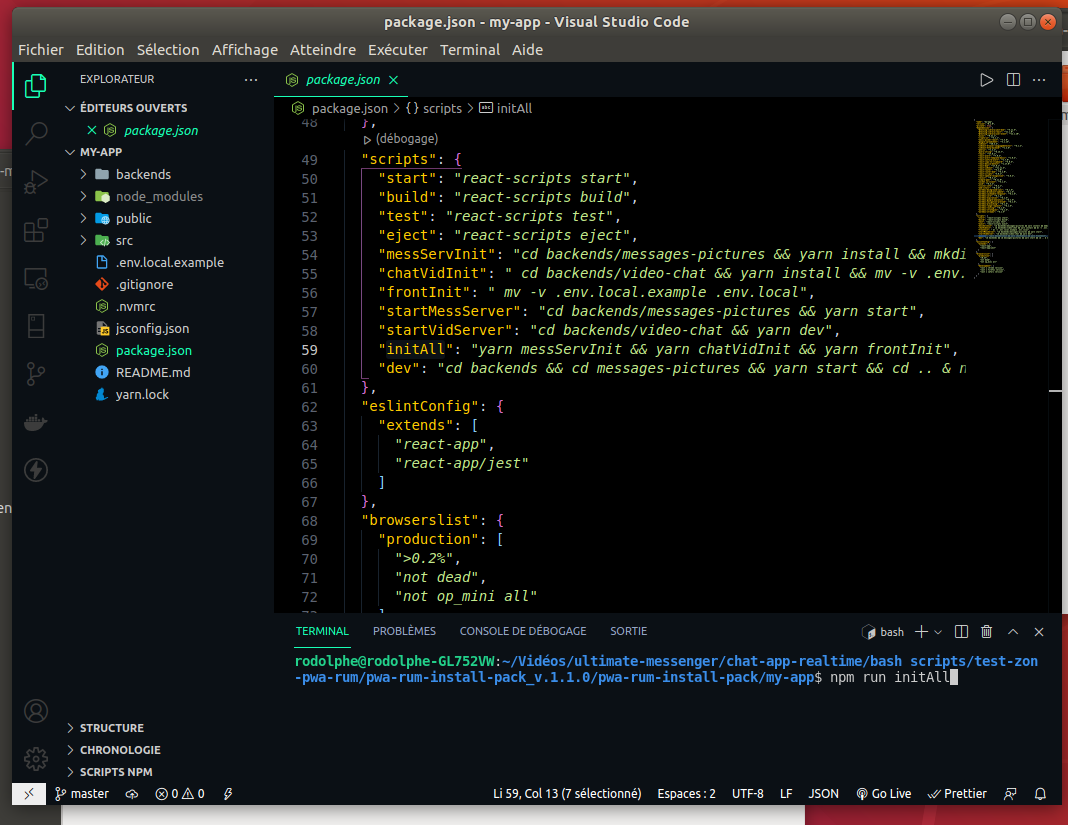
You have to open the folder with the terminal, in this example I use VSCode to do that. then, once at the root of the application, enter
npm run initAll in the console then execute the command.
the script then runs exactly the same way as the initialization step* of the installation script.
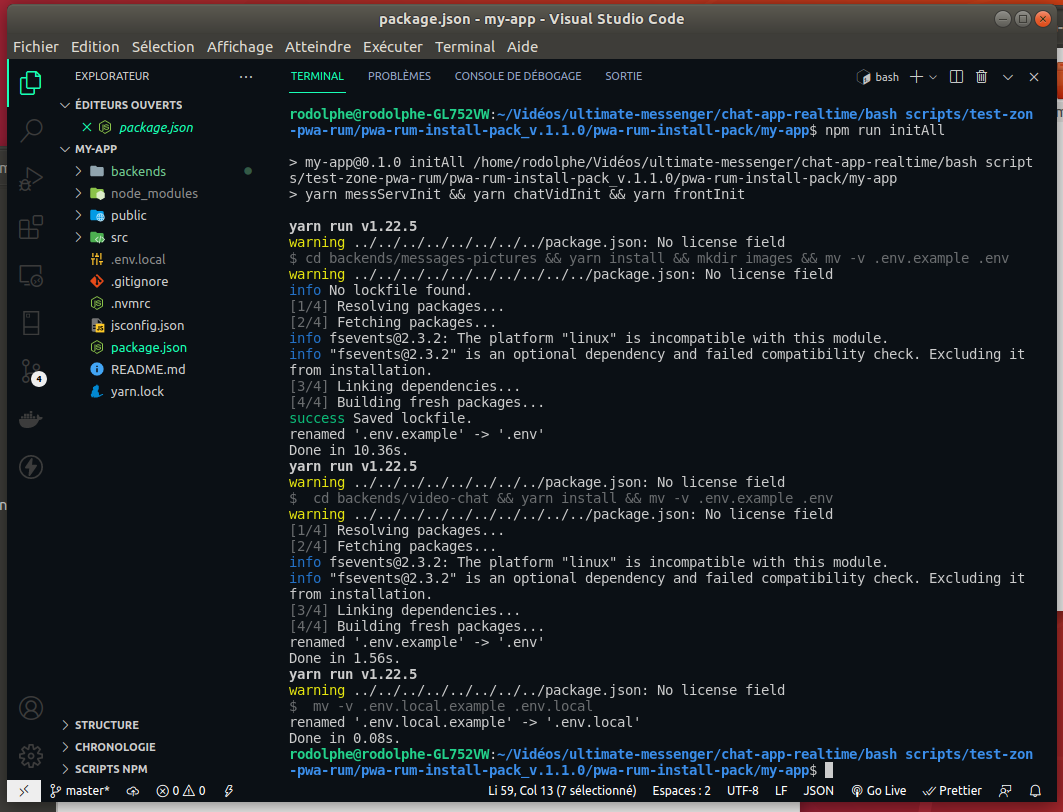
*refer to What happens during the initialization section
open the App!#
Open with VSCode or not & start the App right now or not!#
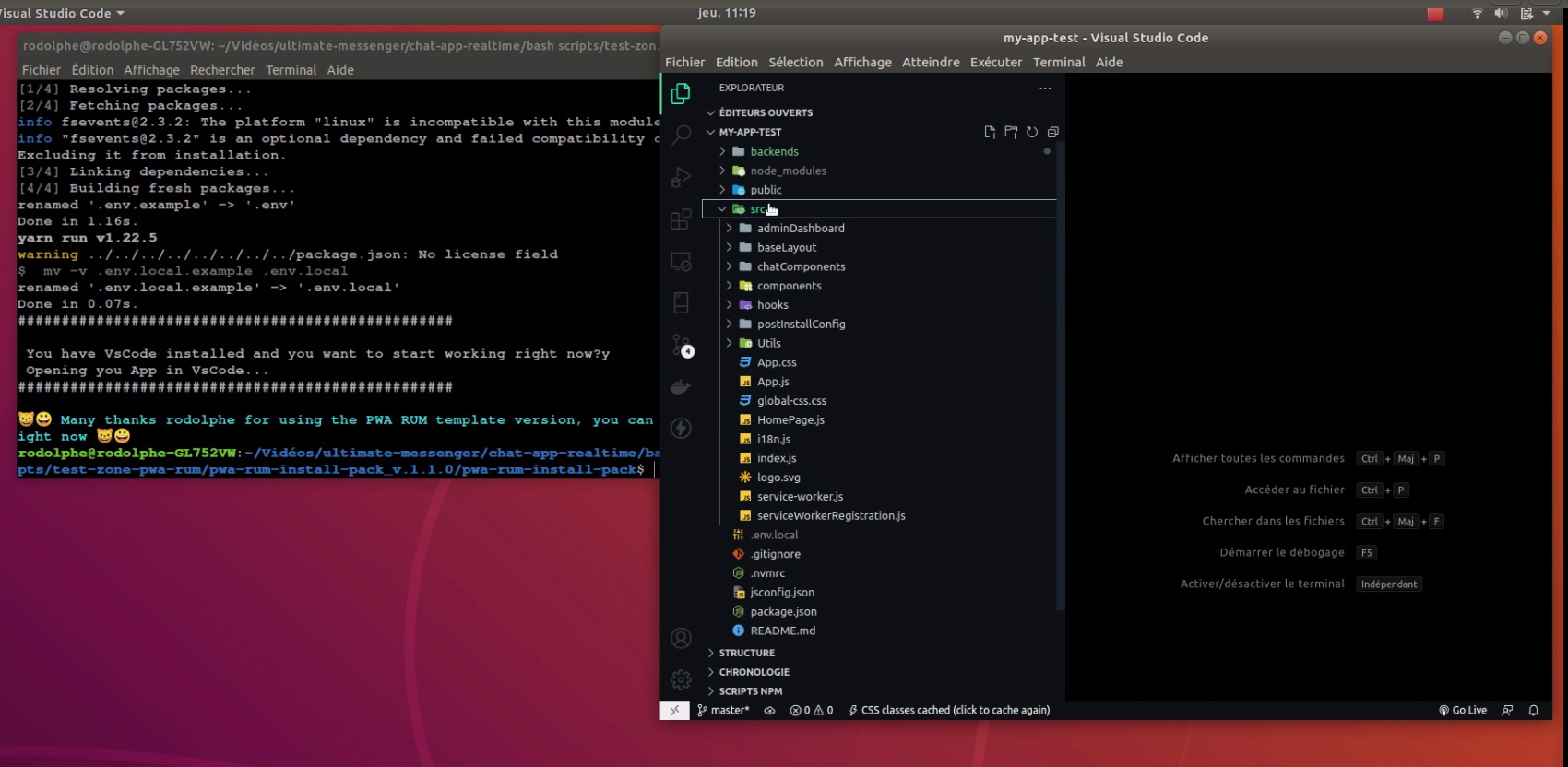
In this example I choose to open it with vs code but if you answer no, then the script will ask you if you want to start the app now via the current console.
Test the application after initialization!#
You can start the app simply by running
npm run devThis will start the messages-pictures server on port 4000, the video-chat server on port 4001 and then the react application on port classic 3000.
You can access the application at the usual address:
http://localhost:3000Local test only#
You can test locally (a classic window + a window in private navigation) || (a window of a browser "Chrome for example" + a window of another browser "Firefox for example"). Or you can test your local version with one of the demo versions.
Local with online version Test#
If you have any cors problems when you try the online version with your local version!
You can add Allow CORS:Access-Control-Allow-Origin chrome extension for easily add rule to the response header.
In this example I will test my local version with the demo version with radial menu here
I open my local version (localhost:3000) in a window and the online version in another window.
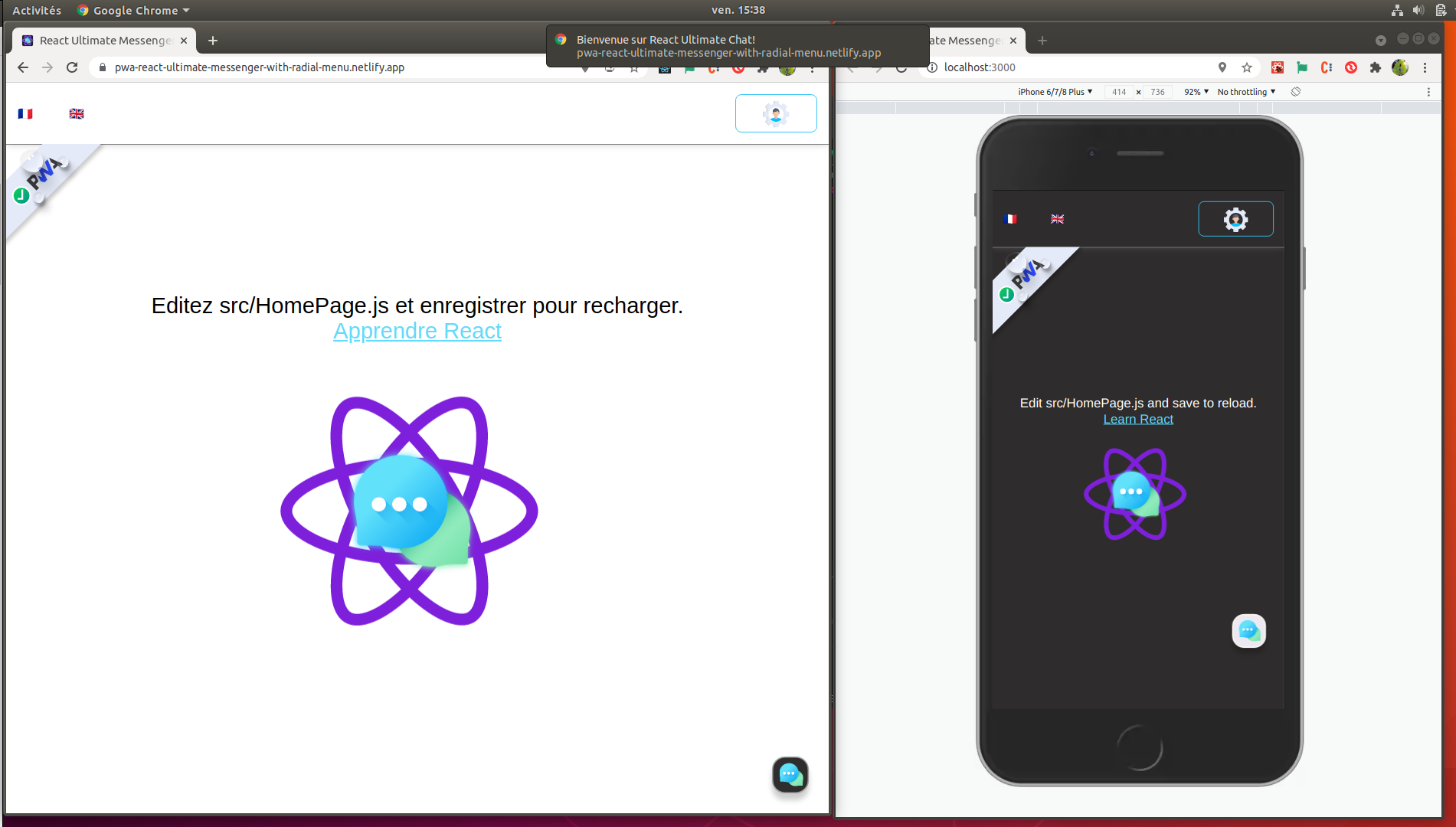
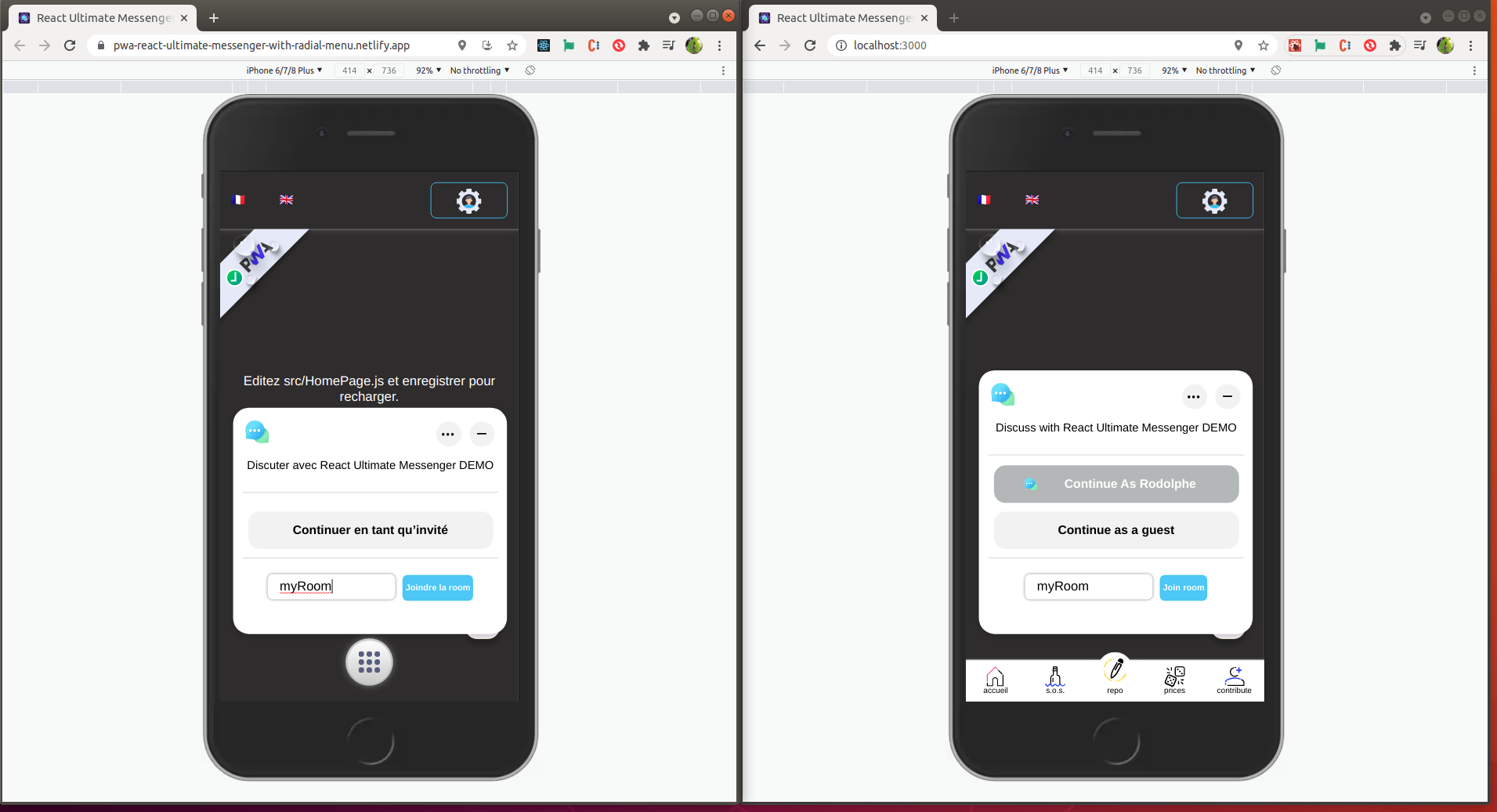
Then I connect to the same Room in both windows.
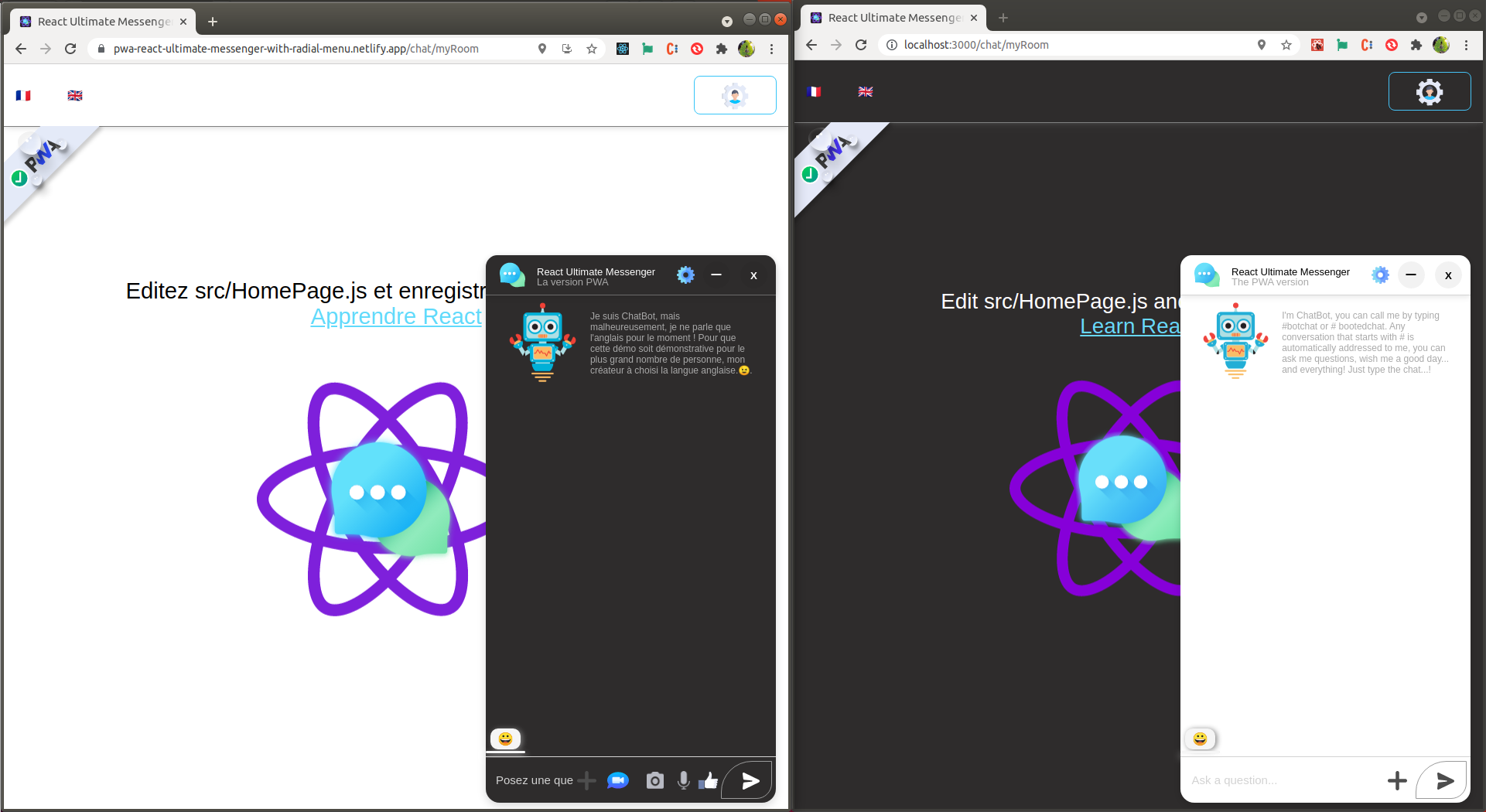
You can notice the dark and light theme of the application, as well as the toolbar (at the bottom of the chat window) unfolded and folded on the image below.
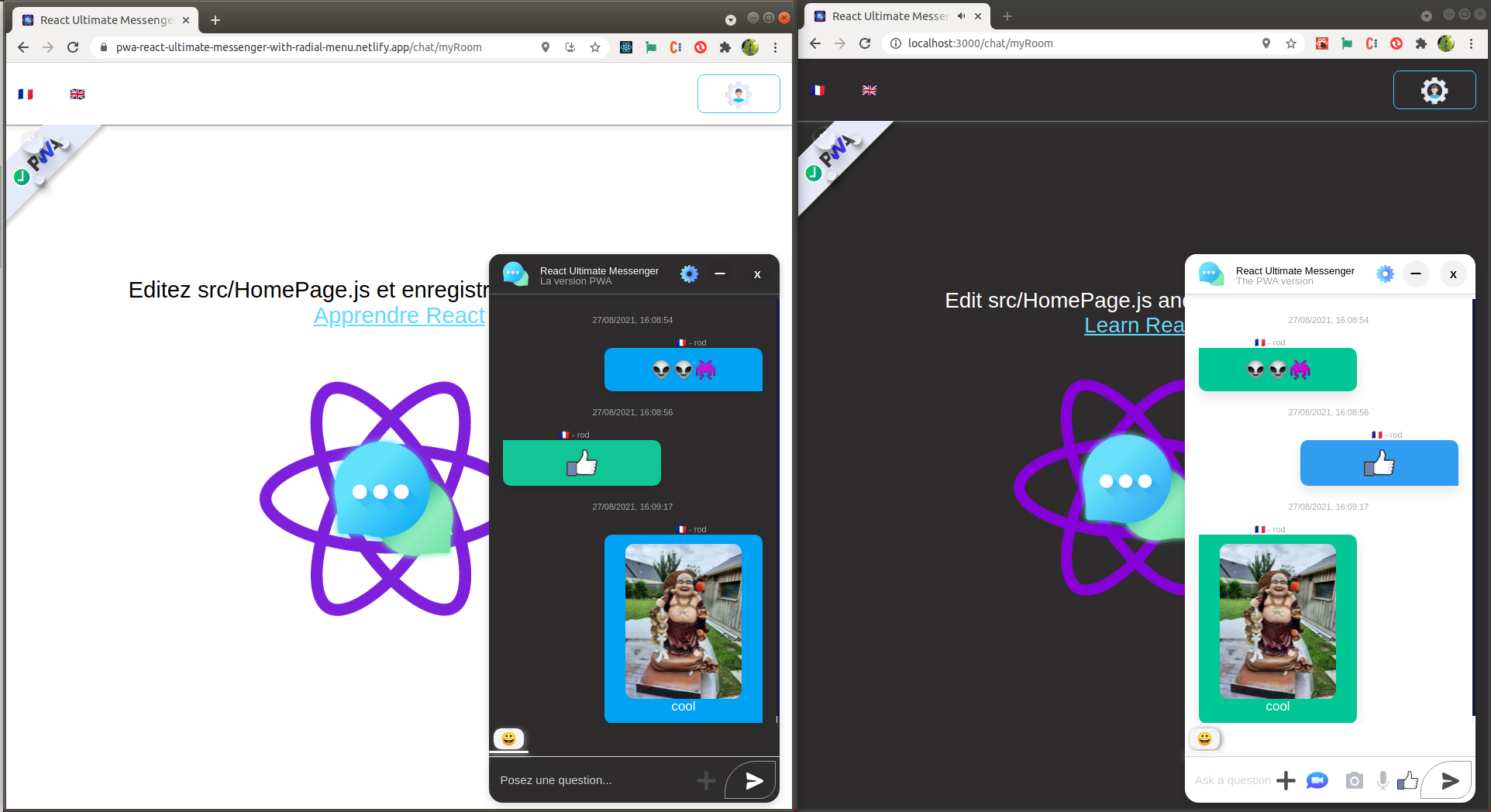
Sending message, emoji, thumb up or image works perfectly.
The video chat function is simple, to invite someone, click on the "Click to copy id" button, the invitation id is copied automatically,
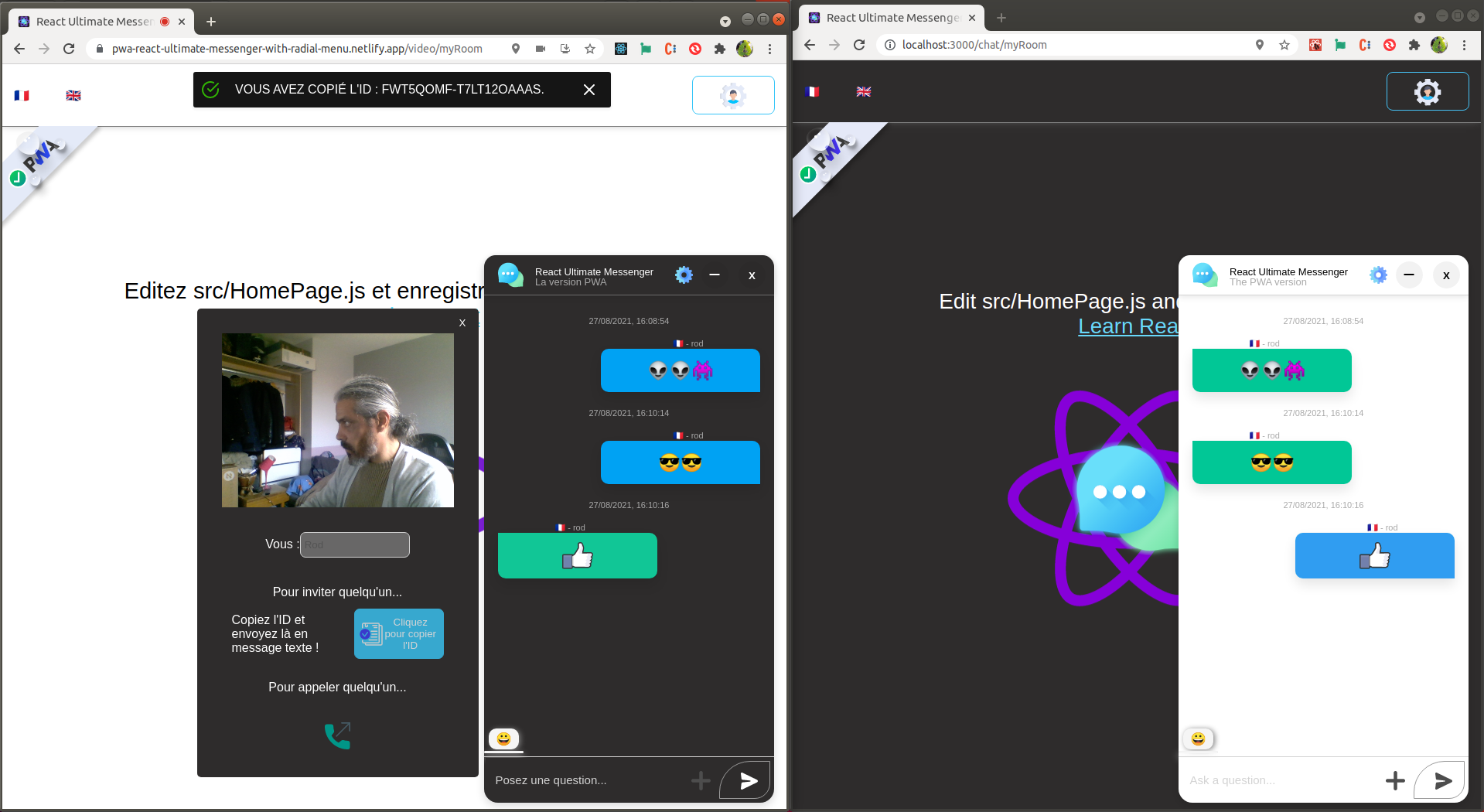
then paste what you just copied into the message area and send it to the other user.
Once the invitation is received, the user clicks on it, it copies the id, deletes the message and automatically redirects to the video chat (receiver only).
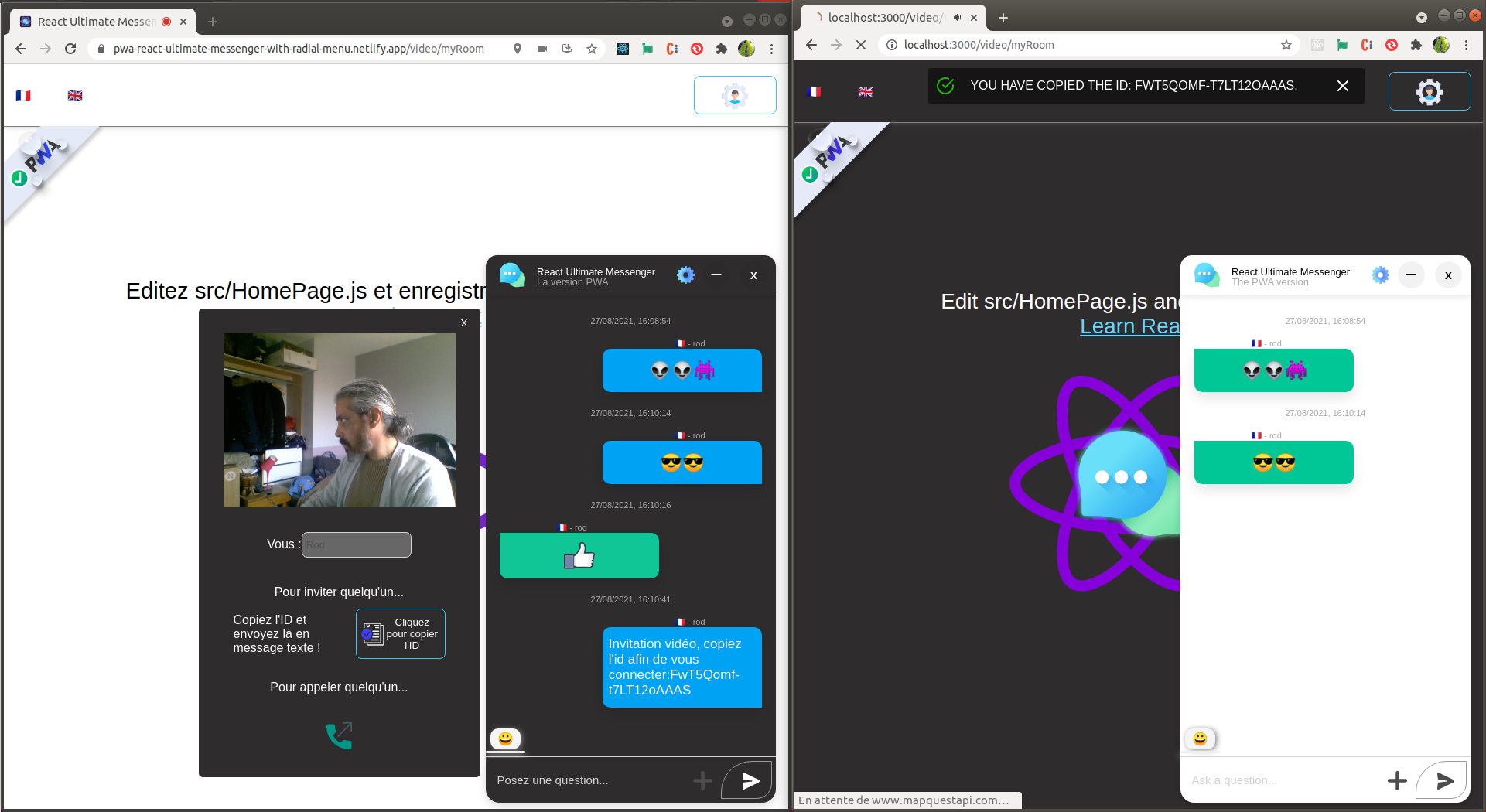
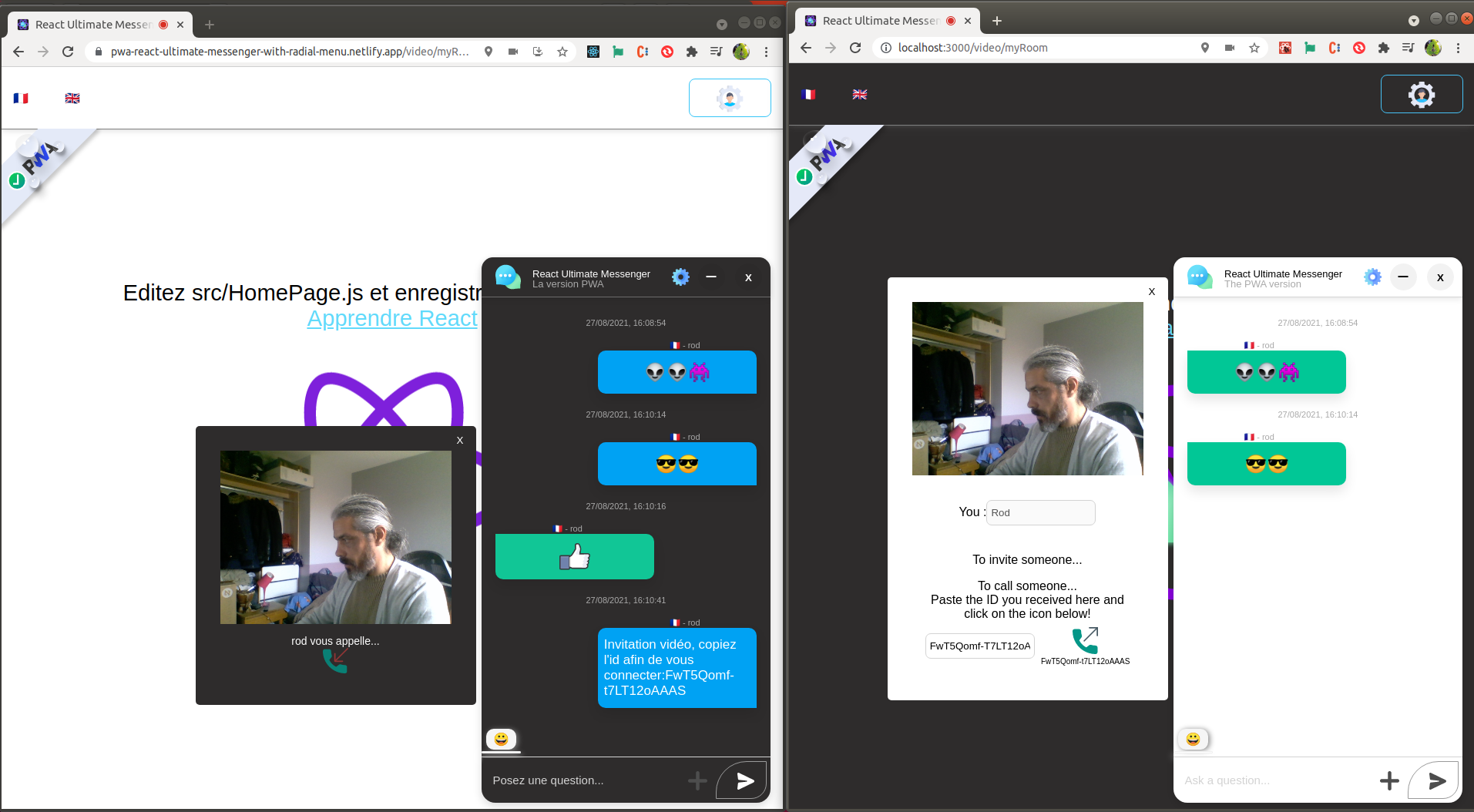
The user who received the invitation just has to paste the id in the appropriate field and then click on the phone icon to start the call.
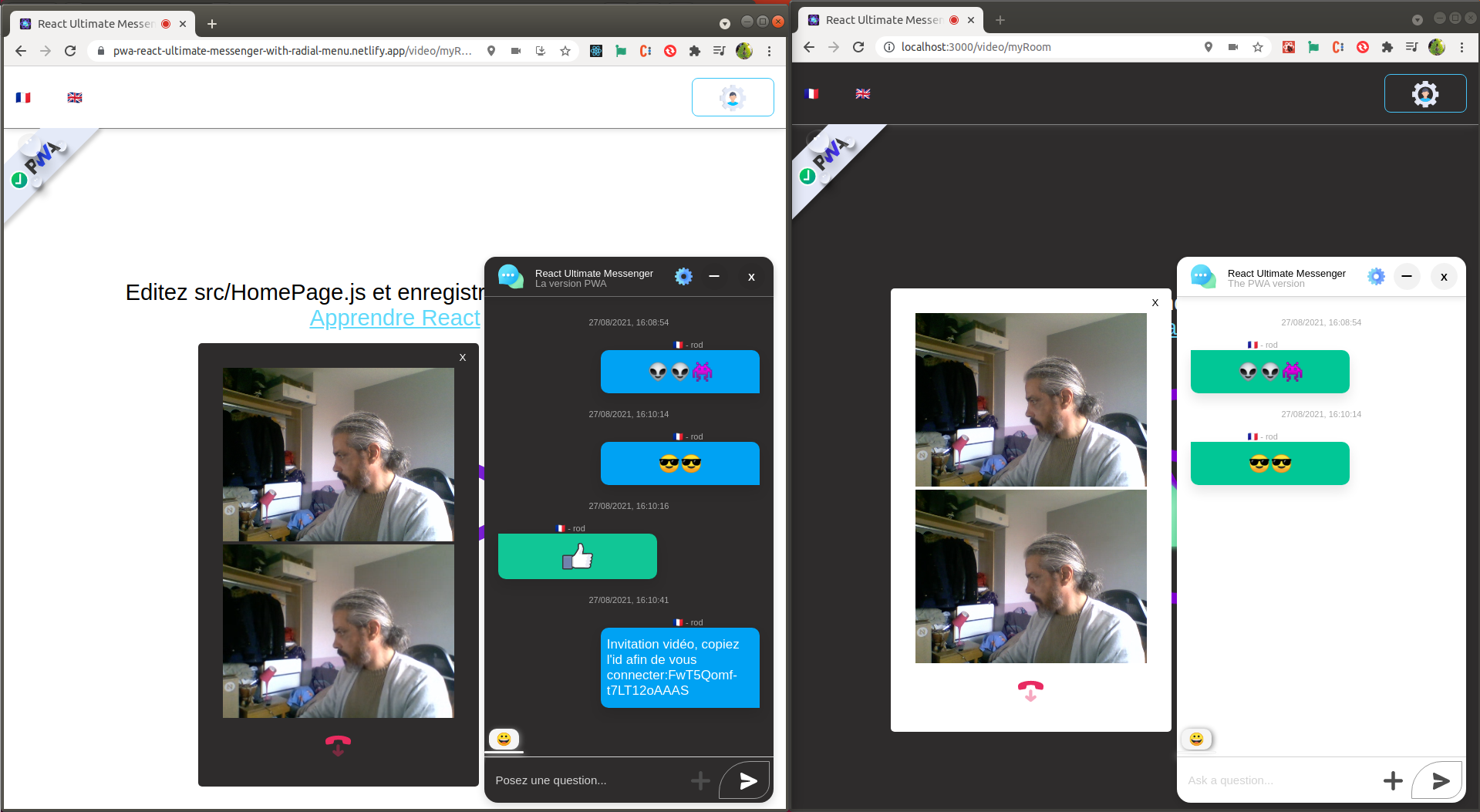
Once the call is in progress, a red icon appears, this is the icon to hang up after the conversation.
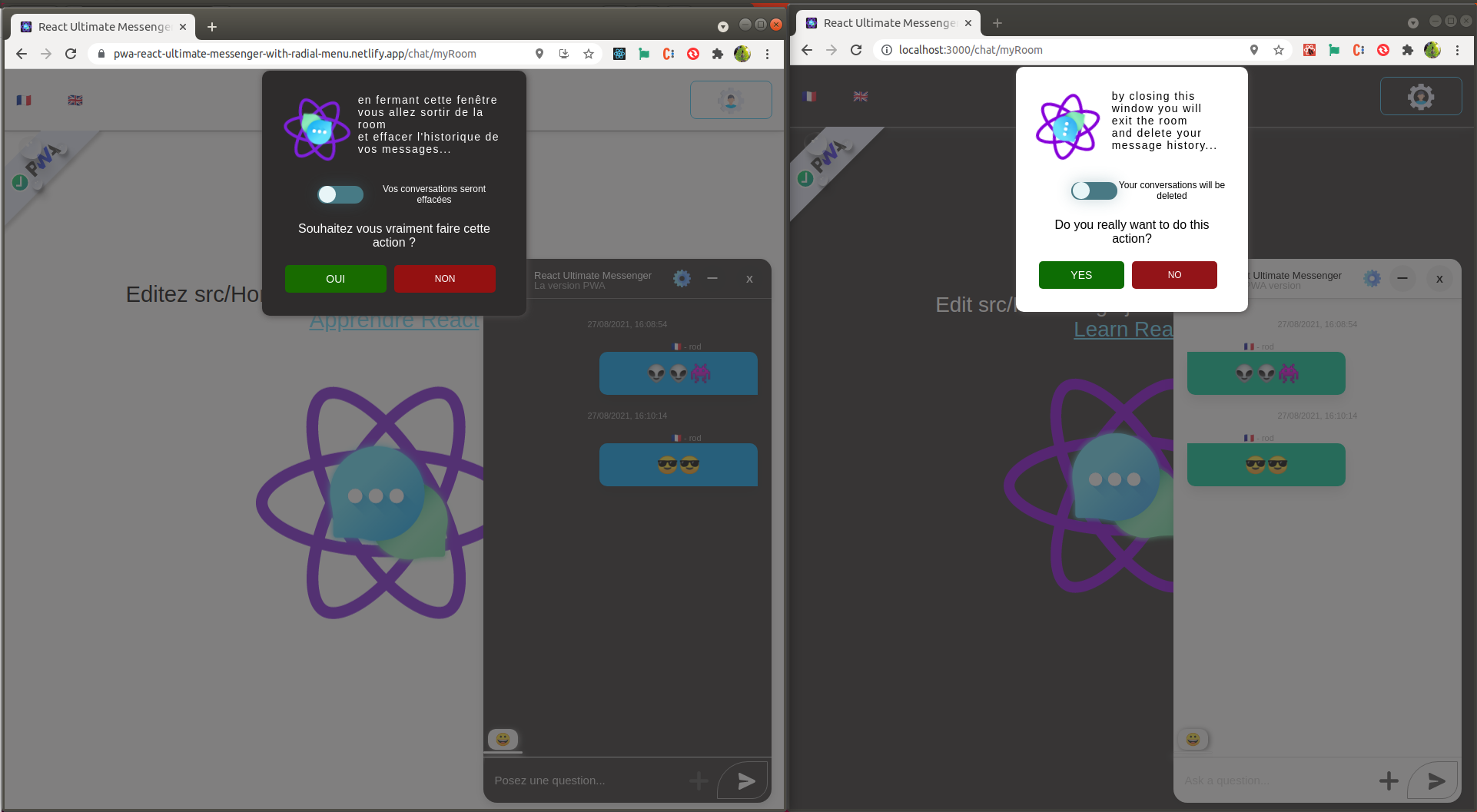
When you click on the icon to close the chat window, an alert will appear to inform you that you are leaving the room, if conversations are present, a checkbox will appear to ask you if you want to keep or delete the conversions.
The application is fully responsive of course.
Ok, the test runs are ok...