Internationalization and adding language to the application
Quick Links#
How to add translation at your App!#
If you don't know i18next look at this links
Ok....
at the root of the src folder, you have an file i18n.js
this is file for configuration
I18n initialization!#
content:#
// i18n.js----------------------import i18n from "i18next";import Backend from "i18next-http-backend";import LanguageDetector from "i18next-browser-languagedetector";import { initReactI18next } from "react-i18next";
// Array of all language, you can add new here!const Languages = ["fr", "en", "pt"];
i18n  .use(Backend)  .use(LanguageDetector)  .use(initReactI18next) // bind react-i18next to the instance  .init({    fallbackLng: "fr",    debug: false,    whitelist: Languages,
    interpolation: {      escapeValue: false, // not needed for react!!    },
    // react i18next special options (optional)    // override if needed - omit if ok with defaults
    react: {      bindI18n: "languageChanged",      bindI18nStore: "",      transEmptyNodeValue: "",      transSupportBasicHtmlNodes: true,      transKeepBasicHtmlNodesFor: ["br", "strong", "i"],      useSuspense: false,    },  });
export default i18n;
I18n is imported globally in index.js file
// index.js----------------------...import "./i18n";...
...
ReactDom.render(  ...,  document.querySelector("#root"));
I18n changeLanguage!#
For changing language by icons
// BaseLayout.js----------------------...// I use useTranslation hook for all actionsimport { useTranslation } from "react-i18next";...const BaseLayoutApp = (props) => {...// i18n is function for changing language  const { i18n } = useTranslation(); ...
  // function for changing languages  const changeLanguage = (lng) => {    i18n.changeLanguage(lng);    setLanguage(lng);  };
  ...  return (    <div className="layout-container-App">     ...    {/*It's a component who display clickable flags for each languages*/}      <HeaderApp        changeLanguage={changeLanguage}      />     ...    </div>  );};
export default BaseLayoutApp;And the component with change laguage buttons
// HeaderApp.js----------------------...
const HeaderApp = ({ changeLanguage }) => {...
  return (    <div className="header-headContent">     ...        <span          className="buttonLanguage"          style={{            cursor: "pointer",            display: "flex",            alignItems: "center",            justifyContent: "space-between",            position: "absolute",            zIndex: "888",            width: 87,          }}        >          <span            className="tradButtonfr"            style={{ marginRight: "15px" }}            onClick={() => changeLanguage("fr")}          >            <span role="img" aria-label="france flag">              🇨🇵            </span>          </span>          <span className="tradButtonen" onClick={() => changeLanguage("en")}>            <span role="img" aria-label="england flag">              🇬🇧            </span>          </span>          <span            className="tradButtonpt "            style={{ marginLeft: "15px" }}            onClick={() => changeLanguage("pt")}          >            <span role="img" aria-label="Português flag">              🇵🇹            </span>          </span>        </span>     ...    </div>  );};
export default HeaderApp;
translation content#
With i18next-http-backend, for adding content for translation in your app, you just need to go to locales folder (in public folder)
tree structure
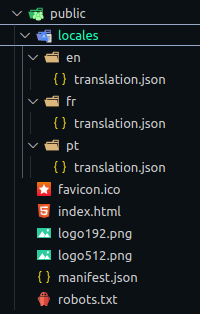
You have three folder with one file "translation.json", on each language folder
for example, you have this lines 34 & 35 in each translation.json file
English content
// en/translation.json----------------------..."editAppText":"Edit","saveAppText":" and save to reload.",...French content
// fr/translation.json----------------------..."editAppText":"Editez","saveAppText":" et enregistrer pour recharger.",...And portugues content
// pt/translation.json----------------------..."editAppText":"Editar","saveAppText":" e registrar para recarregar! ",...How to use the Json files?#
Use the json files content in the App
// HomePage.js----------------------...import { useTranslation } from "react-i18next";...
const HomePage = () => {  ...  //  t is for translation content  const { t } = useTranslation();
  return (    <BaseLayoutApp>      ...      <p>        {t("editAppText")} <code>src/HomePage.js</code>{" "}        {t("saveAppText")}      </p>      ...    </BaseLayoutApp>  );};
export default HomePage;
How to add new language at your App!#
Add new language#
Adding new language in Array of languages in i18n.js file.
In this example i add Deutsch language
// i18n.js----------------------...
// For example i add "de" for Deutsch languageconst Languages = ["fr", "en", "pt", "de"];
...
New folder in locales folder#
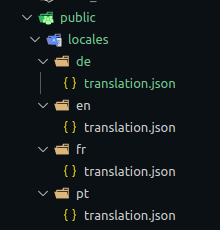
New language content file#
Deutsch content
// de/translation.json----------------------..."editAppText":"bearbeiten","saveAppText":" und speichern, um neu zu laden.",...Add new flag in languages flag buttons#
And, of course, adding the new flag in change Languages buttons Component
You just need to add this kind of snipet to your component
<span className="tradButtonde " style={{ marginLeft: "15px" }} onClick={() => changeLanguage("de")}> <span role="img" aria-label="Germany flag"> 🇩🇪 </span></span>Remove language?#
You just have to delete the language in the language Array in the file i18n.js
// i18n.js----------------------...
// For example i removed all language except french & englishconst Languages = ["fr", "en"];
...
Delete the folder of the concerned language (present in the public/locales folder)
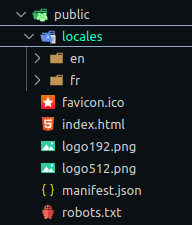
Then delete the button which contains the flag (which has the onClick function of the language you want to delete).
...
const HeaderApp = ({ changeLanguage}) => {... return ( <div className="header-headContent"> ... <span className="buttonLanguage" style={{ cursor: "pointer", display: "flex", alignItems: "center", justifyContent: "space-between", position: "absolute", zIndex: "888", width: 87, }} > <span className="tradButtonfr" style={{ marginRight: "15px" }} onClick={() => changeLanguage("fr")} > <span role="img" aria-label="france flag"> 🇨🇵 </span> </span> <span className="tradButtonen" onClick={() => changeLanguage("en")}> <span role="img" aria-label="england flag"> 🇬🇧 </span> </span> </span> ... </div> );};...And.. that's all. Right now, let see how the custom Push Notification component work!