Login & Admin Panel section!
If you don't know how jwt & bcryptjs work look at this links
Quick Links#
- Connexion
- Credential
- Icons for Dashboard
- Authentication step
- Dashboard's
- Axios custom hook in Admin panel!
connexion#
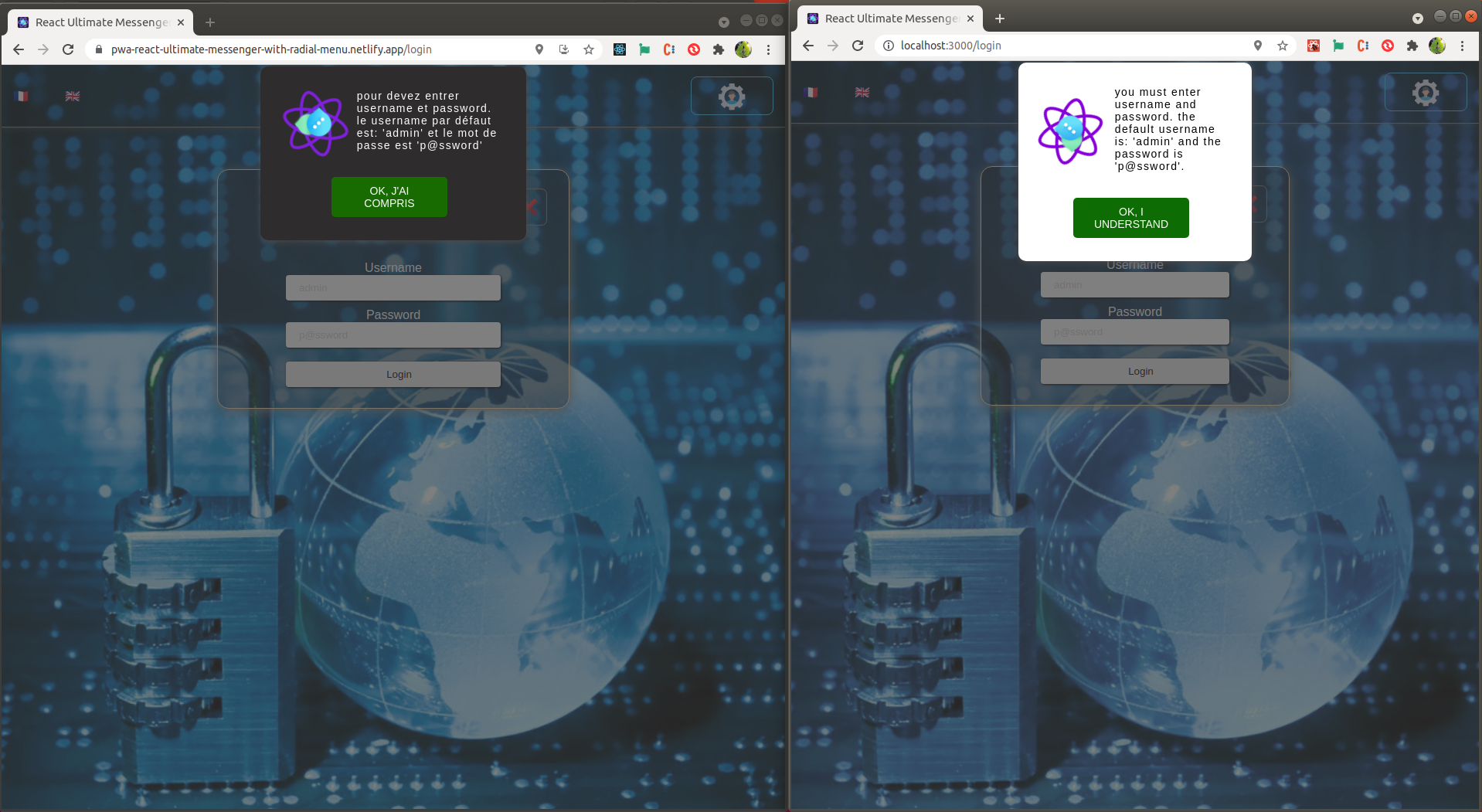
You can go to the admin section by clicking on the appropriate button (top right of the window.) An alert will appear to inform you of the user and password for the demo.
credential#
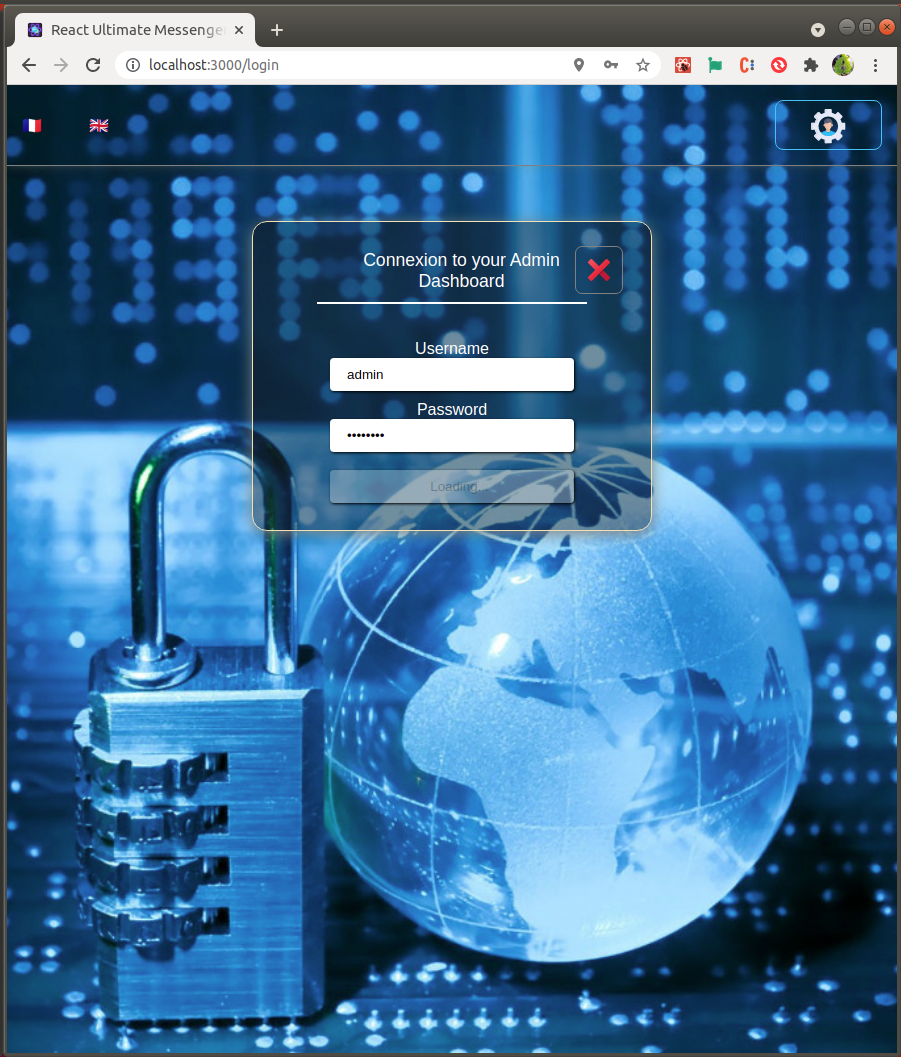
Enter as username: admin
and as password : p@ssword
then enter the admin section.
Icons for dashboard#
All icon are come from boxicons, i have just implemented an css cdn link in index.html file. If you want you cant use the non minified file here or use your hown librarie at your choice.
<!DOCTYPE html><html lang="en"> <head> <meta charset="utf-8" /> ... <link href='https://unpkg.com/boxicons@2.0.7/css/boxicons.min.css' rel='stylesheet'> ... </head> <body> ... </body></html>Authentication step#
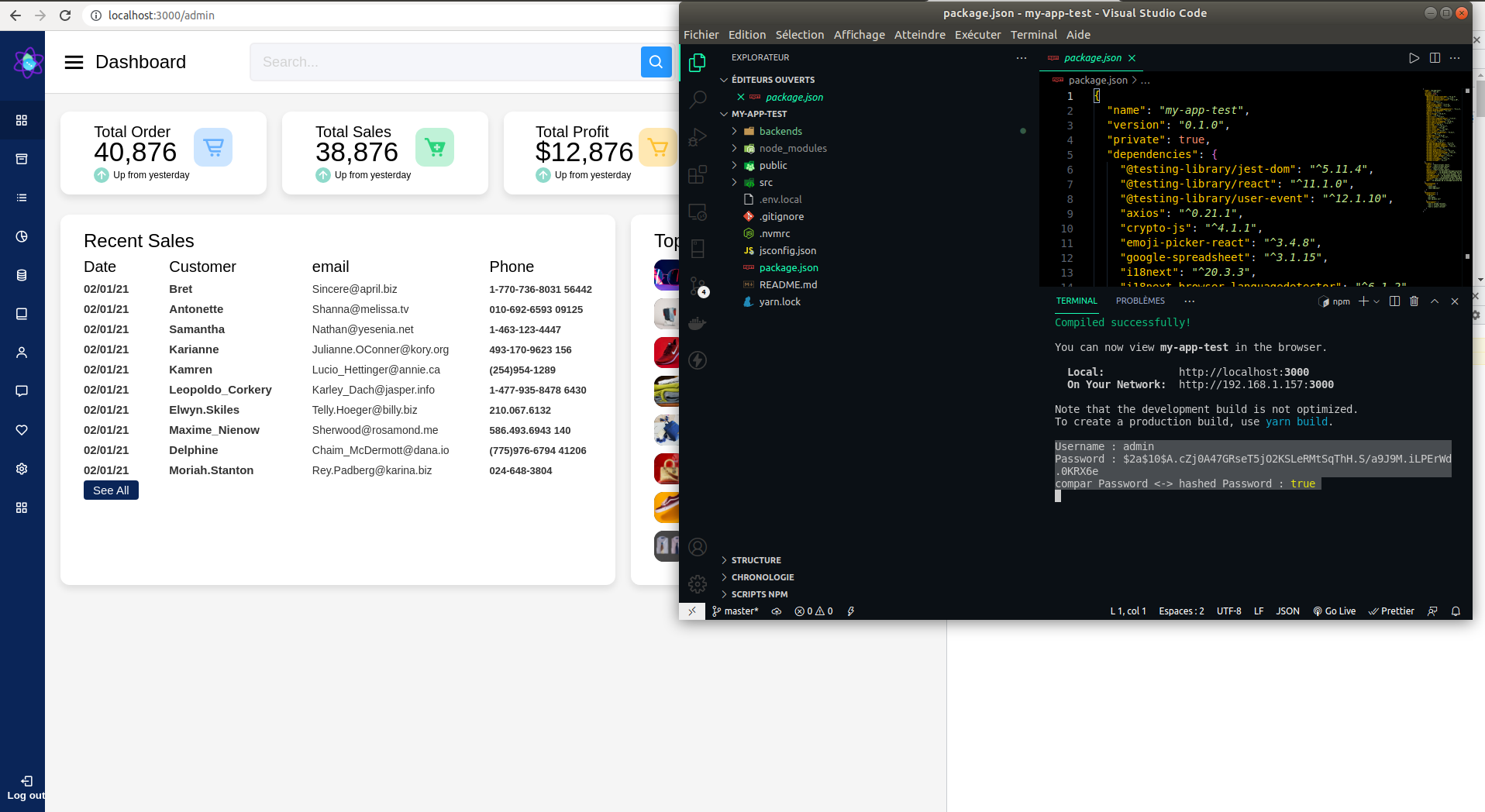
As you can see in the VSCode console, the request is sent to the backend (port 4000), the password is compared to the user's JWT hash by default, if the value is true, access to the admin panel is granted..
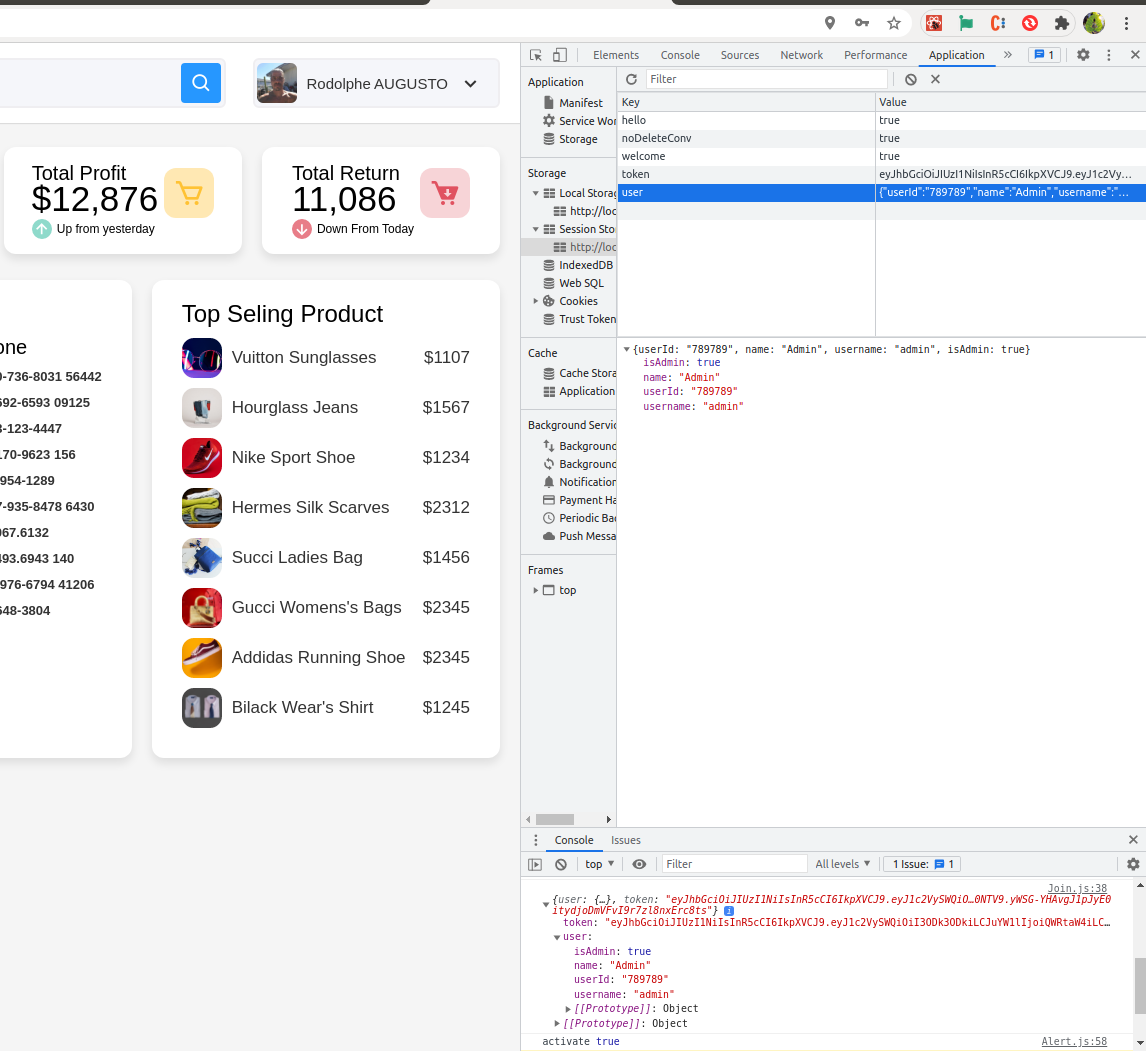
The information necessary for authentication (user infos & token) are stored in the sessionStorage and deleted during the disconnection
How does it work? (very simple usage)#
Secret in .env file
JWT_SECRET=ABCDEF$123Generate token
// utils.js component----------------------// generate token using secret from process.env.JWT_SECRETvar jwt = require("jsonwebtoken");
// generate token and return itfunction generateToken(user) {  //1. Don't use password and other sensitive fields  //2. Use the information that are useful in other parts  if (!user) return null;
  var u = {    userId: user.userId,    name: user.name,    username: user.username,    isAdmin: user.isAdmin,  };
  return jwt.sign(u, process.env.JWT_SECRET, {    expiresIn: 60 * 60 * 24, // expires in 24 hours  });}
// return basic user detailsfunction getCleanUser(user) {  if (!user) return null;
  return {    userId: user.userId,    name: user.name,    username: user.username,    isAdmin: user.isAdmin,  };}
module.exports = {  generateToken,  getCleanUser,};
User in Fake database :
// server.js component----------------------// static user detailsconst userData = { userId: "789789", password: "p@ssword", name: "Admin", username: "admin", isAdmin: true,};// Hashed password from userData Objectconst hashedPassword = bcrypt.hashSync(userData.password, bcrypt.genSaltSync());
And endpoints for usage :
// server.js component----------------------// validate the user credentialsapp.post("/users/signin", function (req, res) {  const user = req.body.username;  const pwd = req.body.password;  // Compare & verify hashed password with req. body password  const hashedPassCompare = bcrypt.compareSync(    req.body.password,    hashedPassword  );  // return 400 status if username/password is not exist  if (!user || !pwd) {    return res.status(400).json({      error: true,      message: "Username or Password required.",    });  }
  // return 401 status if the credential is not match.  if (user !== userData.username || !hashedPassCompare) {    return res.status(401).json({      error: true,      message: "Username or Password is Wrong.",    });  }// Here are all the .log consoles that you can see in the image above.  console.log("Username :", req.body.username);  console.log("Password :", hashedPassword);  console.log("compar Password <-> hashed Password :", hashedPassCompare);
  // generate token  const token = utils.generateToken(userData);  // get basic user details  const userObj = utils.getCleanUser(userData);  // return the token along with user details  if (hashedPassCompare) {    return res.json({ user: userObj, token });  } else {    return;  }});
// verify the token and return it if it's validapp.get("/verifyToken", function (req, res) {  // check header or url parameters or post parameters for token  var token = req.body.token || req.query.token;  if (!token) {    return res.status(400).json({      error: true,      message: "Token is required.",    });  }  // check token that was passed by decoding token using secret  jwt.verify(token, process.env.JWT_SECRET, function (err, user) {    if (err)      return res.status(401).json({        error: true,        message: "Invalid token.",      });
    // return 401 status if the userId does not match.    if (user.userId !== userData.userId) {      return res.status(401).json({        error: true,        message: "Invalid user.",      });    }    // get basic user details    var userObj = utils.getCleanUser(userData);    return res.json({ user: userObj, token });  });});
Dashboard's#
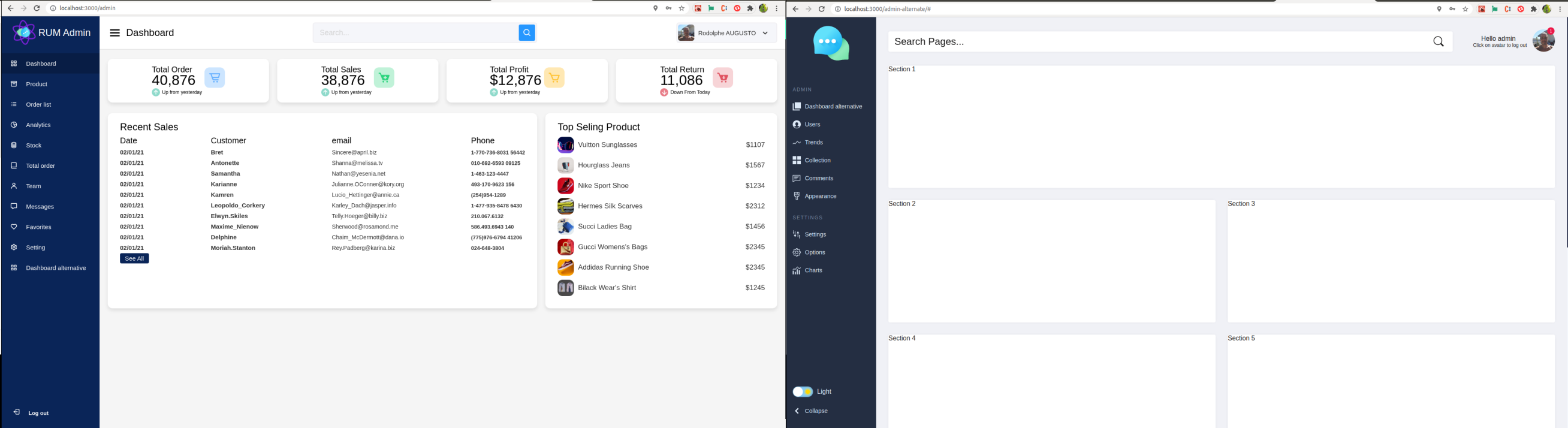
There is a default dashboard (to implement as you wish of course) ....
as well as an alternative empty dashboard, at your choice...
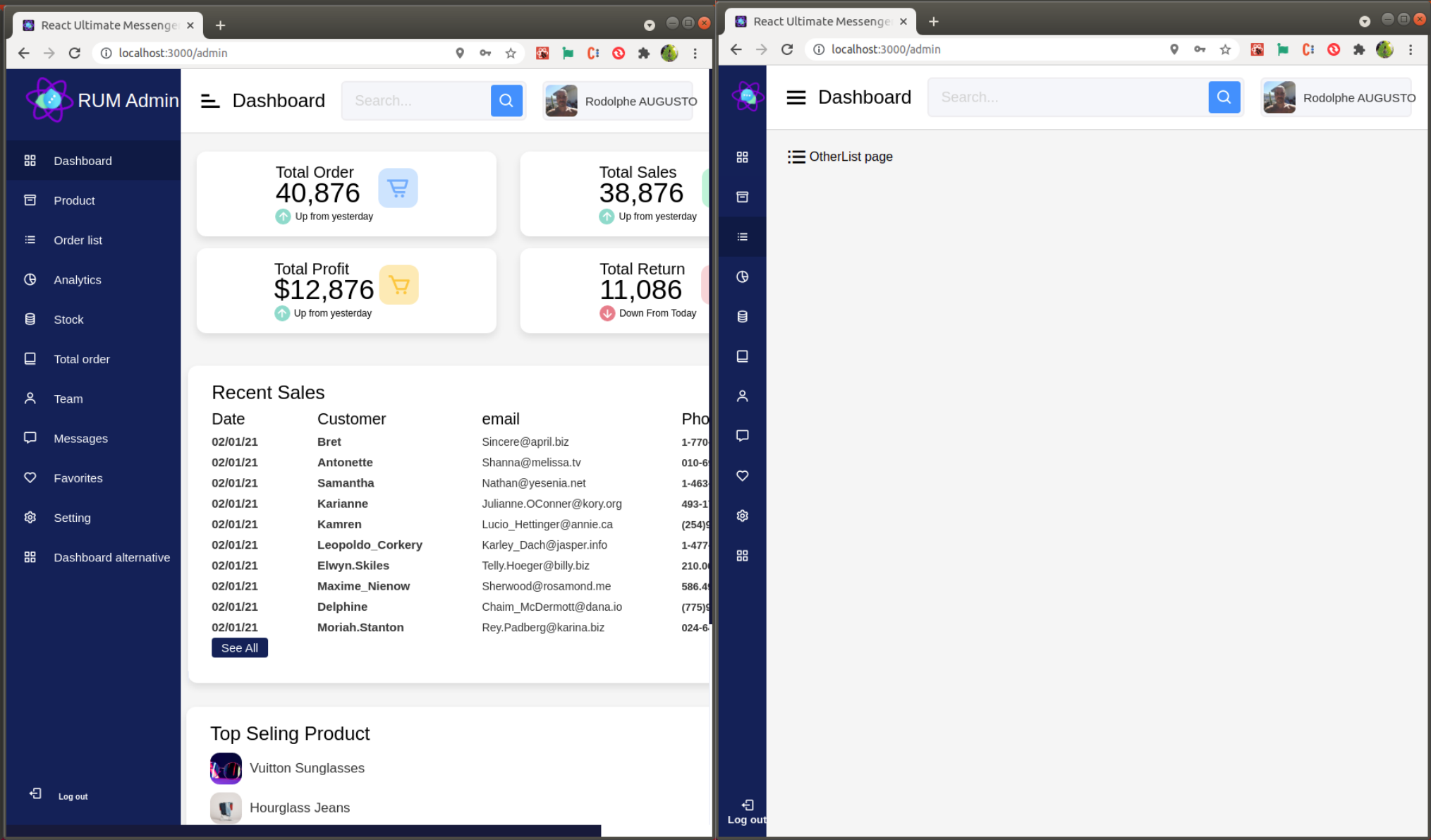
There are also 9 blank pages (only in default dashboard) to implement as you wish of course.
axios custom hook in Admin panel!#
If you don't know axios read this link Axios
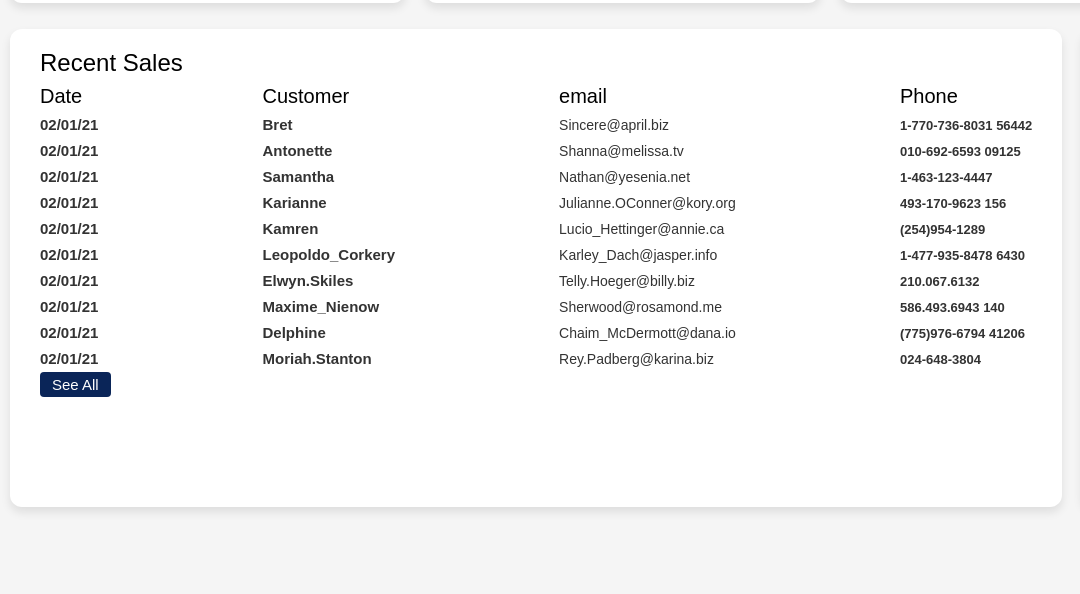
This section of the dashboard uses the customHook "useAxios.js" to display users info from JsonPlaceHolder
How does it work?#
content#
// useAxios.js customHook----------------------import { useState, useEffect } from "react";import axios from "axios";import { useRecoilState } from "recoil";import isOnlineAtom from "chatComponents/stateManager/atoms/isOnlineAtom";
axios.defaults.baseURL = process.env.REACT_APP_JSON_PLACEHOLDER;
const useAxios = (params) => {  const [response, setResponse] = useState(null);  const [error, setError] = useState(null);  const [loading, setLoading] = useState(false);  // If the fetch is not done correctly, then turn false the online boolean state.  // (when is offline, the OfflineMessage component is displayed to the screen)  const [isOnline, setIsOnline] = useRecoilState(isOnlineAtom);
// Fonction with Axios params  const fetchData = async (params) => {    setLoading(true);    try {      const res = await axios.request(params);      setResponse(res.data);      setIsOnline("online");      setError(null);    } catch (err) {      setIsOnline("offline");      setError(err);    } finally {      setLoading(false);    }  };
  useEffect(() => {    fetchData(params);  }, []);
  return { response, error, loading };};
export default useAxios;Environment variable#
# .env file----------------------REACT_APP_JSON_PLACEHOLDER="https://jsonplaceholder.typicode.com"usage in dashboad component#
// Dashboard.js Component----------------------import useAxios from "chatComponents/hooks/useAxios";import OfflineMessage from "baseLayout/shared/offlineMessage/OfflineMessage";import useAdmin from "../hooks/useAdmin";...
const Dashboard = () => {  // To know if is online or not  const { isOnline } = useAdmin();  // useAxios usage with params  const { response } = useAxios({    method: "GET",    url: "/users",    header: {      accept: "*/*",    },  });  return (    <div className="home-content">      {isOnline === "offline" ? (        <OfflineMessage type="danger" content="offlineMessage" />      ) : null}        ...            <ul className="details">              <li className="topic">Customer</li>              {response &&                response.map((res) => (                  <li key={res.id}>                    <a                      style={{ fontSize: 15, fontWeight: "bold" }}                      href="#"                    >{`${res.username}`}</a>                  </li>                ))}            </ul>            <ul className="details">              <li className="topic">email</li>              {response &&                response.map((res) => (                  <li key={res.id}>                    <a style={{ fontSize: 14 }} href="#">                      {res.email}                    </a>                  </li>                ))}            </ul>            <ul className="details">              <li className="topic">Phone</li>              {response &&                response.map((res) => (                  <li key={res.id}>                    <a style={{ fontSize: 13, fontWeight: "bold" }} href="#">                      {res.phone.split("x")}                    </a>                  </li>                ))}            </ul>          </div>       ...      </div>    </div>  );};
export default Dashboard;
That's it, we've done the tour of this section... Now, let's go to the messages section & how it's work!